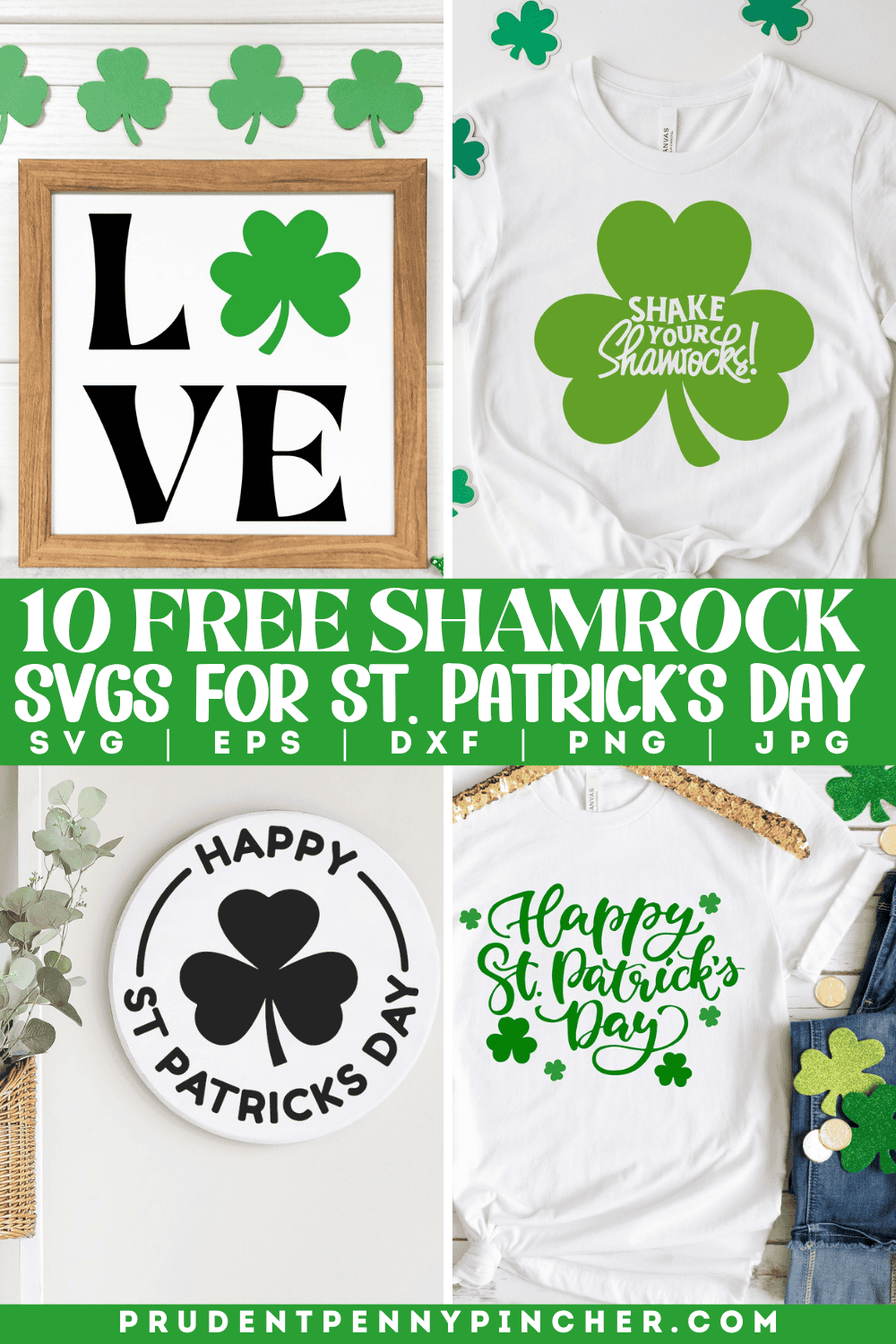
Add a little Irish charm to your St. Patrick's Day crafts with these free shamrock SVG files.
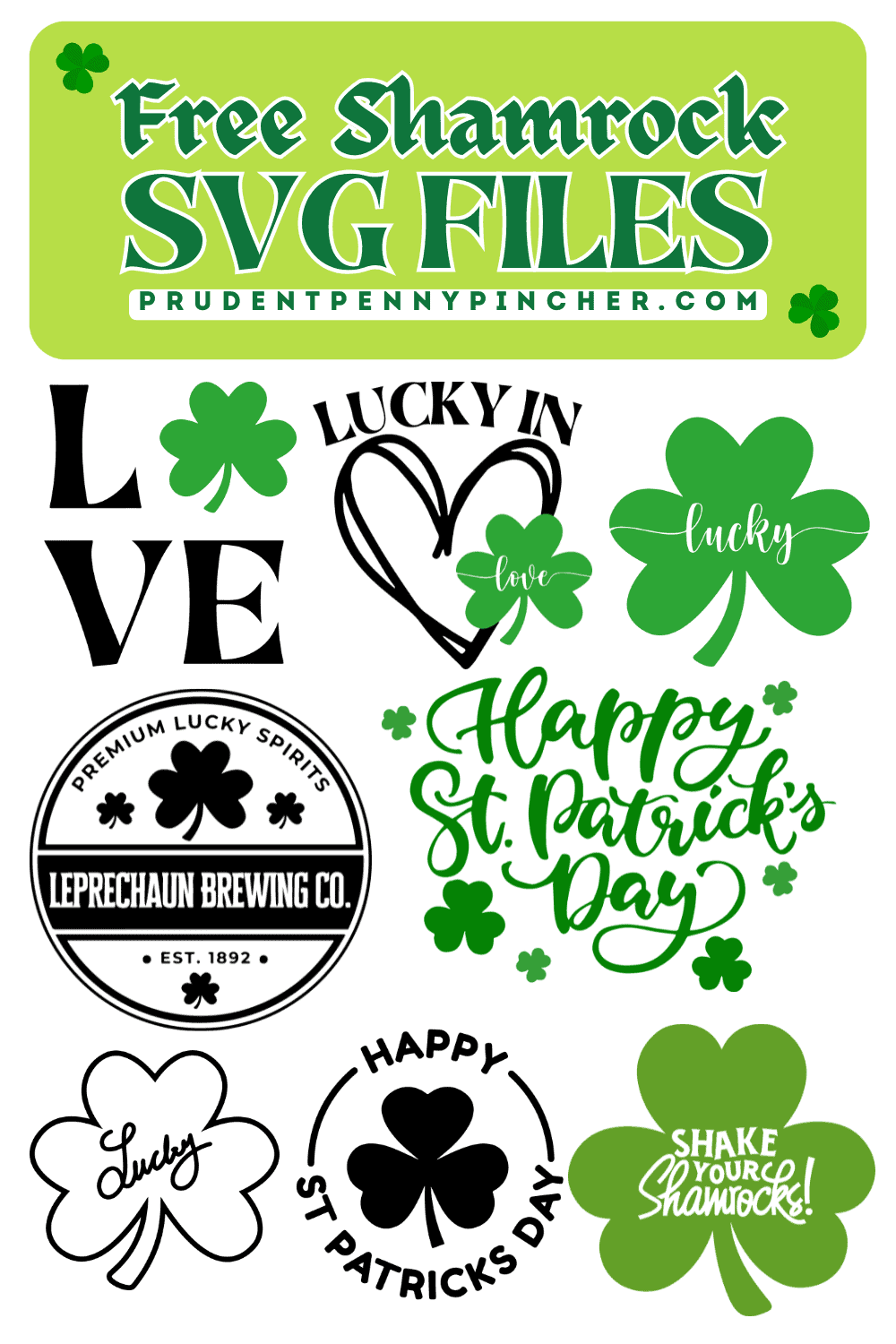
Whether you're making festive shirts, personalized mugs, party decorations, or cute home decor, these shamrock designs are an easy way to bring extra luck and style to your St. Patrick's Day SVG files. From classic shamrocks to fun sayings, these Cricut crafts are perfect for adding a festive touch to your March 17th celebration.
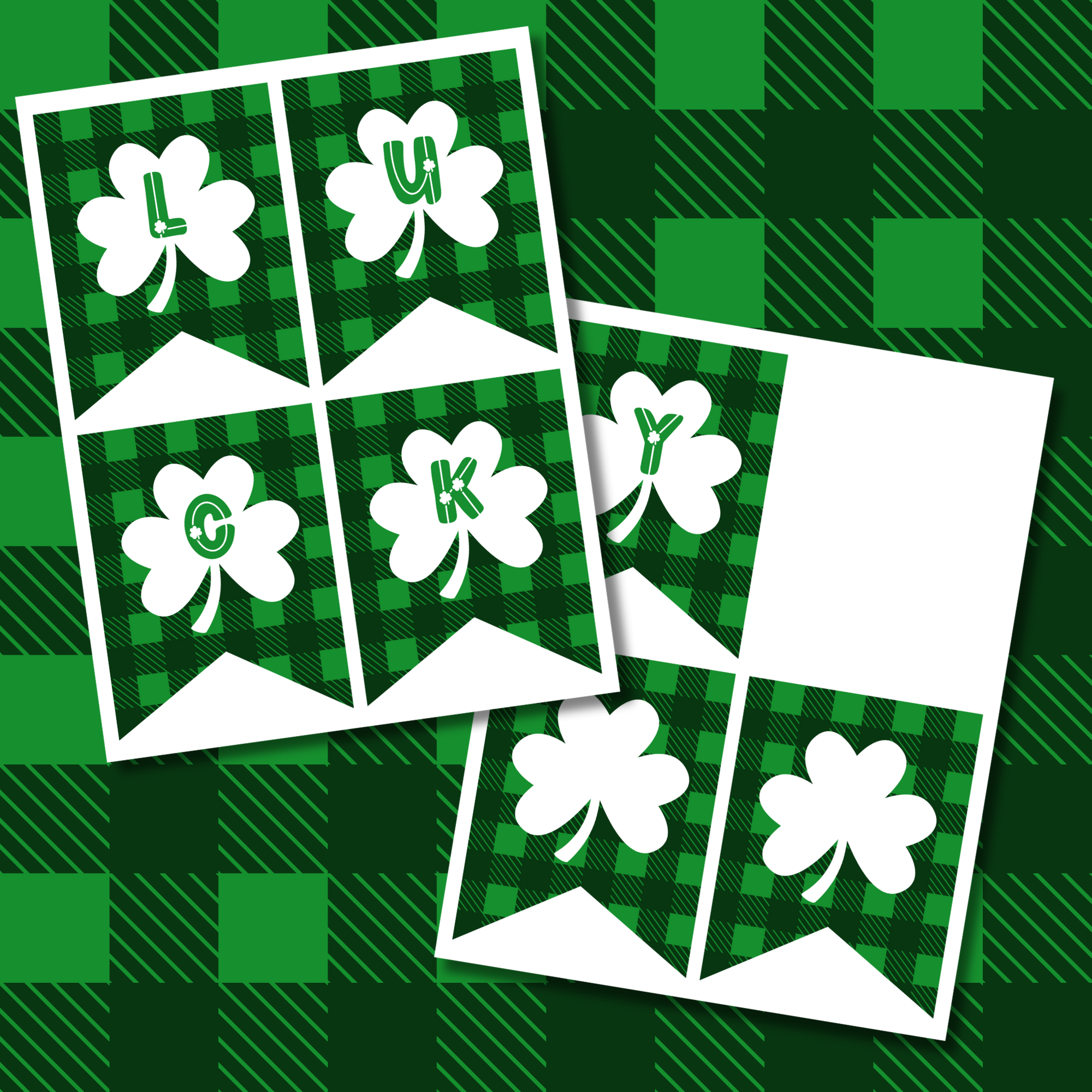
With these free shamrock cut files, you can create custom t-shirts, tote bags, stickers, signs, throw pillows, and so much more. Whether you're crafting for a party, making a thoughtful gift, or adding a little Irish flair to your home, these free shamrock SVGs make it easy to create something fun and lucky. If you're putting together St. Patrick’s Day decor, be sure to pair it with this free printable St. Patrick's Day banner and these free St. Patrick’s Day printables for your home!
Jump to:
What File Formats Are Included?
Each shamrock design comes with 5 file formats in its Google Drive folder, so you can choose the one that works best for your project.
- SVG
Best for Cricut and other cutting machines. - DXF
A good option for the Silhouette Studio Basic Edition. - EPS
Great for editing in design programs. - PNG
Works well for sublimation, printables, and digital projects because it has a transparent background. - JPG
Best for previews and simple printable uses.
How to Download the Free Shamrock SVGs
Downloading these files is quick and easy. Under each design, just click the “Get It Here” button. That will take you to a Google Drive folder containing all 5 file formats for that design: SVG, EPS, DXF, PNG, and JPG.
Once the folder opens, select the file format you need and download it to your computer. If you're using a Cricut or Silhouette machine, the SVG file is usually the best option. After downloading your file, upload it to your cutting software, customize it for your project, and start crafting.
If you're downloading on a phone or tablet, it may be easier to save the files to your device first and then open them later on a desktop or laptop when you're ready to use them.
Supplies Needed
Before you start crafting with these free SVGs, it helps to have the right supplies on hand. Whether you're making shirts, mugs, tote bags, or home decor, these basic tools and materials will help your project come together smoothly.
Basic Supplies
- Cricut or Silhouette Machine
- Any cutting machine that works with SVG files, such as a Cricut Maker, Cricut Explore, or Silhouette Cameo.
- Computer and Design Software
- You'll need Cricut Design Space or Silhouette Studio to upload and edit your design.
- Cutting Mat
- A StandardGrip or LightGrip mat works best, depending on the material you're using.
- Weeding Tools
- These make it easy to remove the extra vinyl from your design.
- Transfer Tape
- Needed for applying adhesive vinyl to hard surfaces.
- Scissors, Paper Trimmer, or Craft Knife
- Helpful for trimming vinyl or heat transfer material.
For Iron-On (HTV) Projects
If you're making t-shirts, tote bags, sweatshirts, or other fabric crafts, you'll also need:
- Heat Transfer Vinyl (HTV)
- Choose your favorite colors, or use glitter HTV for extra sparkle.
- Heat Press or Iron
- Used to apply your design to fabric.
- Teflon Sheet or Parchment Paper
- This helps protect your design during heat application.
For Adhesive Vinyl Projects
If you're using these files for mugs, signs, tumblers, or other hard surfaces, you'll want:
- Permanent Adhesive Vinyl
- A great choice for mugs, tumblers, signs, and home decor.
- Scraper Tool
- Helps smooth the vinyl and remove air bubbles during application.
How to Use SVGs for Your Cricut Machine
1. Download and Upload the SVG
Click the Get It Here button under the design you want, then open the Google Drive folder and download the shamrock SVG file to your computer. In Cricut Design Space, start a new project and click Upload, then Upload Image. Select the SVG file from your computer and add it to your Canvas.
2. Resize and Customize Your Design
Resize the design to fit your project. If you want to add text or combine it with other design elements, you can do that in Design Space before cutting. If your design has multiple pieces and you need them to stay in a specific arrangement on the mat, use Attach. This keeps the placement the same as it appears on your Canvas.
3. Mirror the Design for Iron-On Projects
If you are making a shirt, tote bag, sweatshirt, or any other heat transfer vinyl project, make sure your design is mirrored before cutting. Cricut Design Space can automatically turn on mirroring when you choose a material like Iron-On, but it is still a good idea to double-check before you continue, especially if your design includes words.
4. Choose Your Material and Cut
Click Make It and follow the prompts in Design Space. Select the material you are using, such as iron-on for fabric projects or permanent vinyl for mugs, signs, and other hard surfaces. Then place your material on the mat, load it into your Cricut machine, and begin cutting. If your design uses more than one color, Design Space will separate the layers for you so you can cut each color individually.
5. Weed the Design
After the machine finishes cutting, unload the mat and use a weeding tool to remove the extra material around your design. Take your time with small details so the finished design stays neat and clean.
6. Apply the Design
For iron-on projects, place the design on your fabric with the shiny liner facing up. Then use a heat press or iron to apply it. Cricut recommends following the Cricut Heat Guide or Cricut Heat app for the correct temperature, time, and peel instructions, as these can vary depending on your material and blank.
For adhesive vinyl projects, apply transfer tape over your weeded design and burnish it with a scraper tool. Then flip it over and burnish the back as well. Make sure your surface is clean and dry before applying the design. Peel away the backing, place the design onto your blank, smooth it down with a scraper, and carefully remove the transfer tape.
How to Use These Files in Silhouette Studio
First, click the Get It Here button under the design you want and download the file you need from the Google Drive folder. If you have Silhouette Studio Designer Edition or higher, you can upload the SVG file directly. If you are using the free version of Silhouette Studio, use the DXF file instead.
Open Silhouette Studio and import your file into a new project. Once it appears on your canvas, resize it to fit your blank. If you are making a heat transfer vinyl project like a shirt or tote bag, be sure to mirror your design before cutting.
Next, select your material settings, place your vinyl or material onto the cutting mat, and load it into your machine. Once the design is cut, weed away the extra material and apply it to your project just like you would with any other vinyl craft.
These files are great for making shirts, mugs, signs, tote bags, party decor, and more, so you can create all kinds of festive St. Patrick's Day crafts with your Silhouette machine.
Fun Ways to Use These SVGs
These free SVG files can be used for all kinds of St. Patrick's Day Cricut projects, including:
- T-shirts
- Sweatshirts and hoodies
- Tote bags
- Hats and beanies
- Baby onesies
- Socks
- Scarves and bandanas
- Mugs
- Beer glasses and pint glasses
- Coasters
- Kitchen towels
- Oven mitts and pot holders
- Wooden signs and wall art
- Throw pillows
- Door mats
- Banners and garlands
- Candles and jars
- Napkins and table runners
- Keychains
Shamrock SVG Files

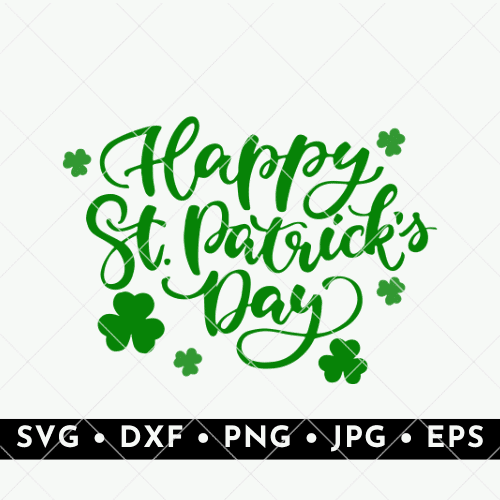
Celebrate March 17th in style with this Happy St. Patrick's Day SVG, featuring fun script lettering and tiny shamrocks. It's perfect for making festive t-shirts, tote bags, party decorations, or even a cheerful mug for your morning coffee.
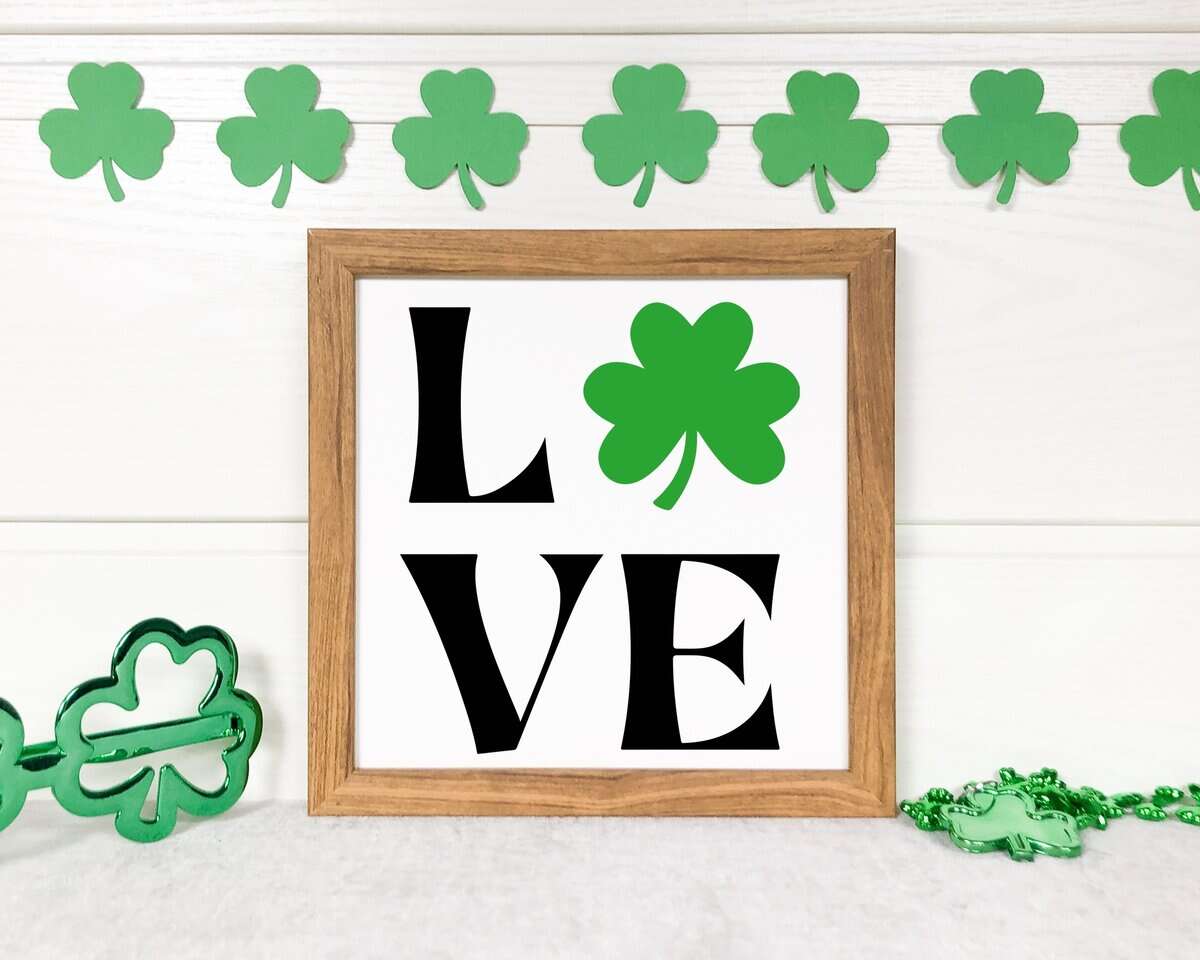
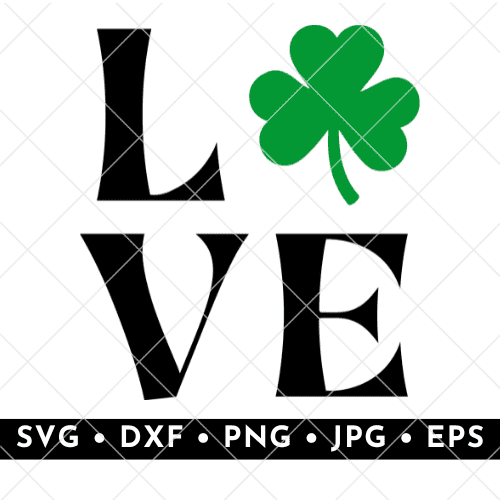
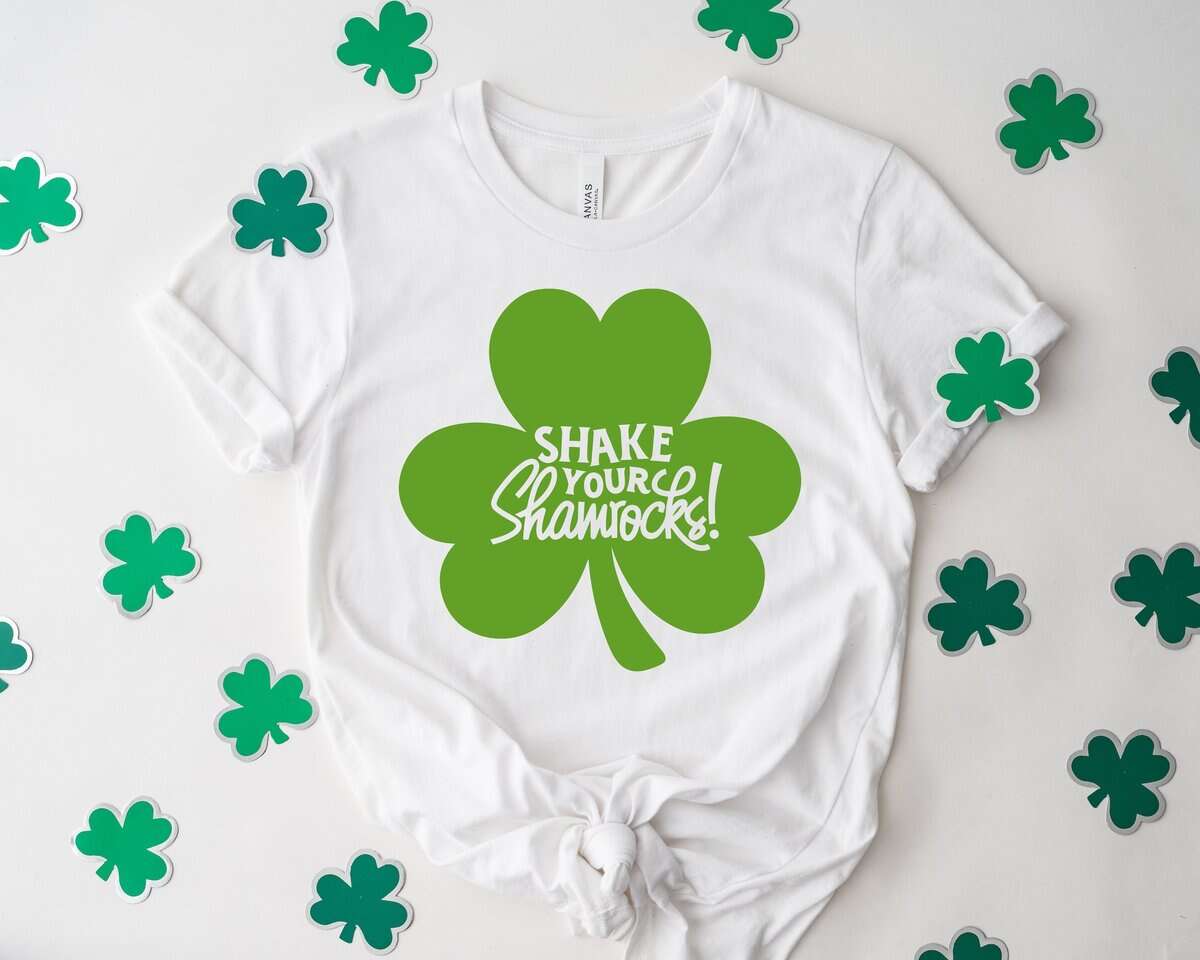
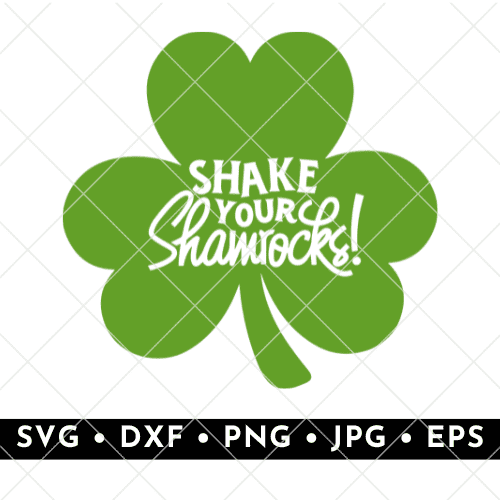
Bring a little humor to your St. Patrick's Day with this funny Shake Your Shamrocks. It's a great option for party shirts, beer mugs, coasters, and other festive accessories.
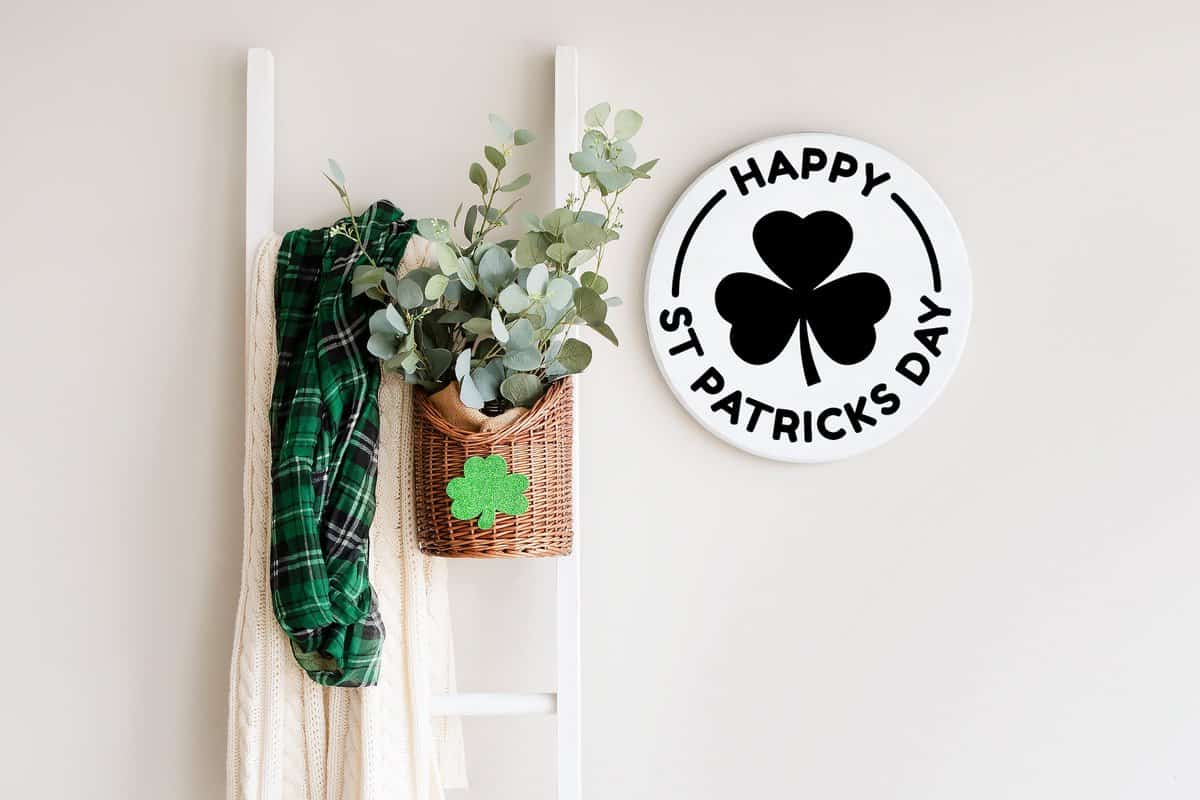
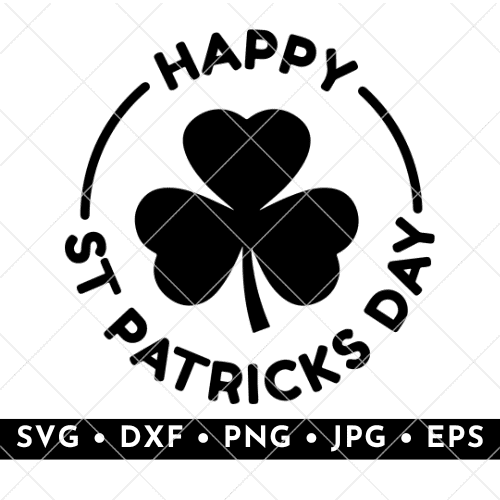
This simple and classic circular design works well for so many different projects. Use it to make stickers, drink koozies, door signs, and more for an easy and festive Irish touch.

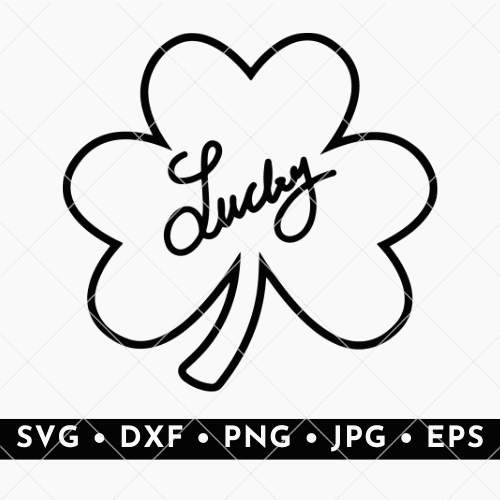
Keep your project simple and stylish with this hand-drawn shamrock outline featuring the word “Lucky” in handwritten script. This minimalist SVG is perfect for vinyl decals, stickers, tote bags, and other simple St. Patrick's Day crafts.

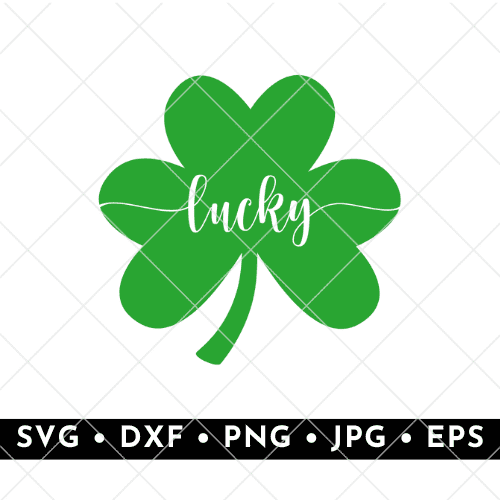
This simple design features a bright green shamrock with elegant script lettering. This design works beautifully on mugs, tumblers, tote bags, shirts, and festive home decor, such as tiered tray signs.
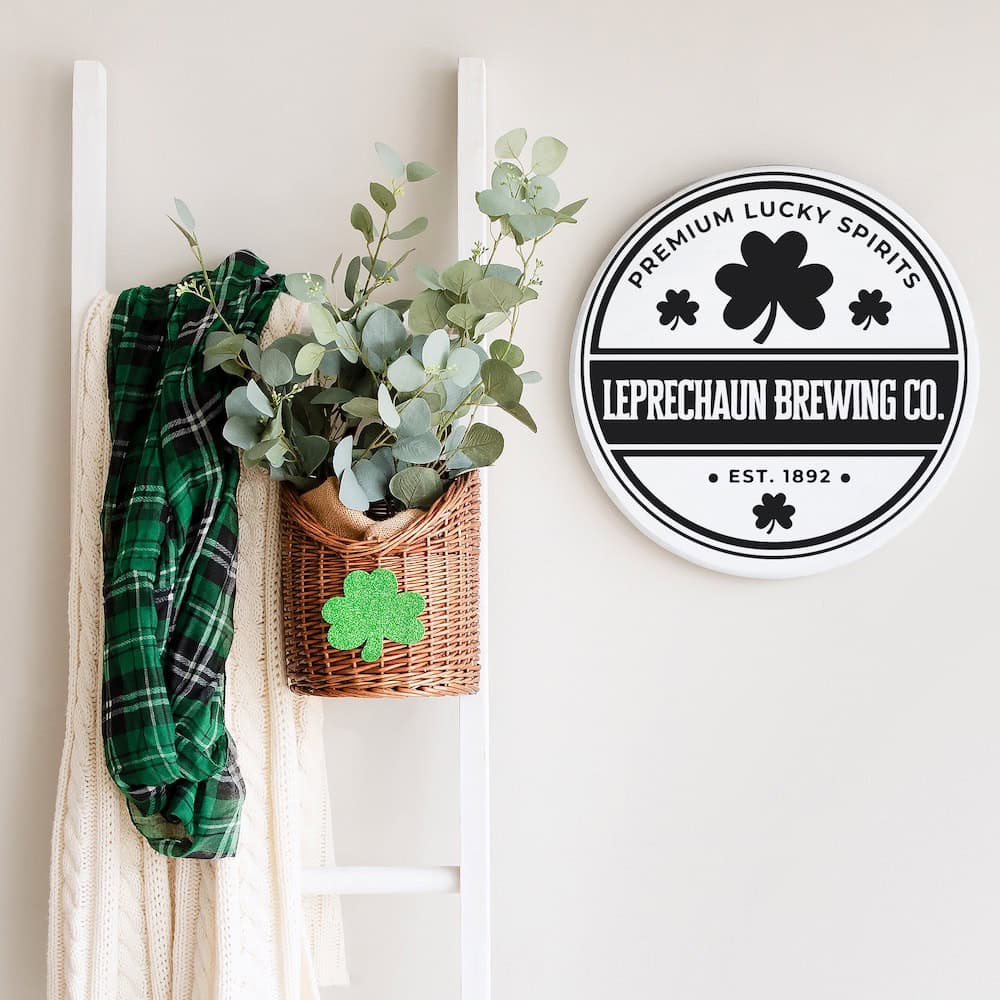
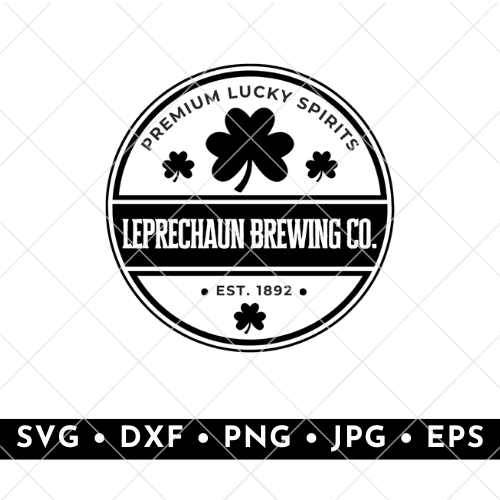
Give your St. Patrick's Day projects a fun vintage-inspired look with this round Leprechaun Brewing Co. design. This file is perfect for making rustic signs, bar cart decor, beer glasses, coasters, or party decorations that bring a playful pub-style touch to your celebration.
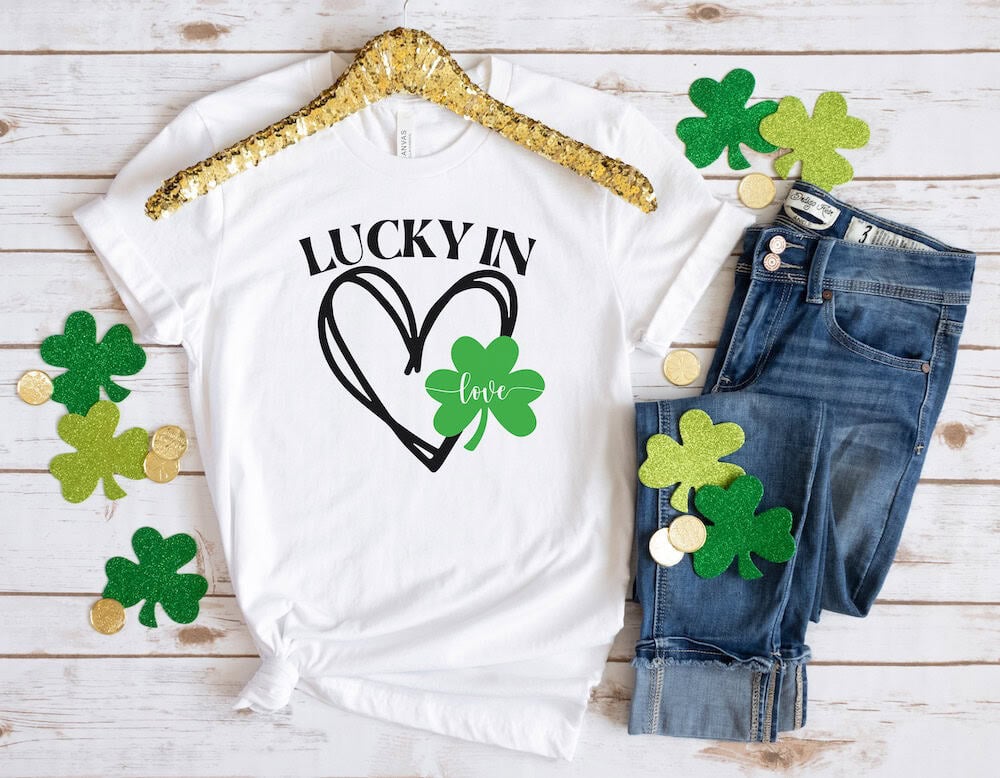
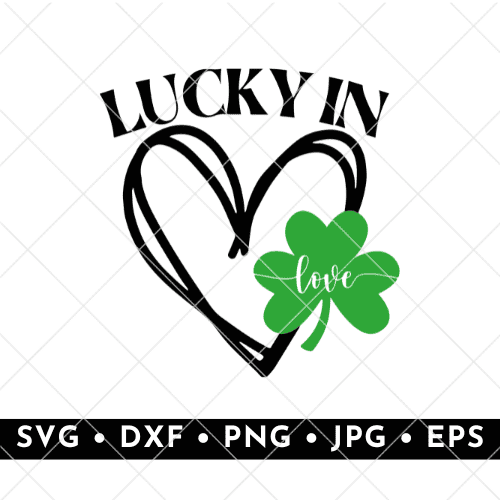
Add a festive touch to your March 17th crafts with this Lucky in Love SVG. Featuring a hand-drawn heart outline, bold lettering, and a bright green shamrock with the word "love," this design is perfect for making cute shirts or tote bags.
More SVG Files
- 15 Free Spring SVG Files
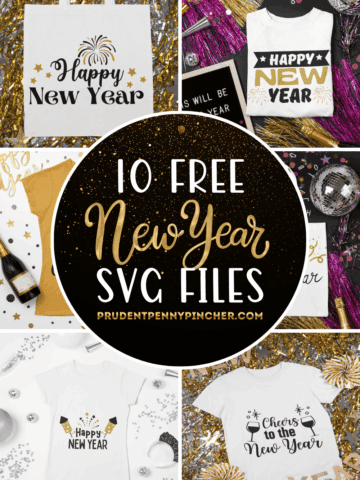
- Free New Year SVG Files
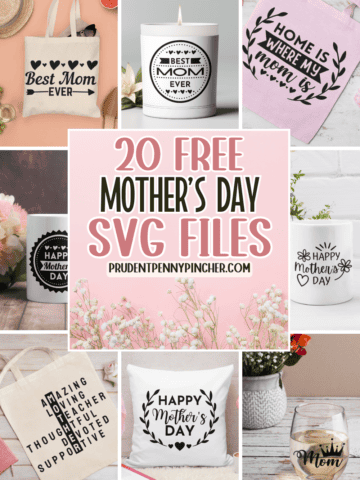
- 20 Free Mother’s Day SVG Files
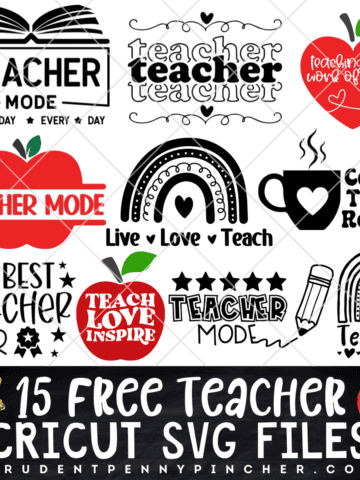
- 15 Free Teacher SVG Files
More St. Patrick’s Day Crafts
- 50 Dollar Store St Patrick’s Day Decor Ideas
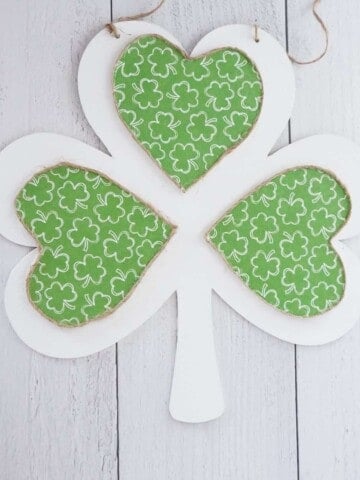
- Dollar Tree Shamrock Craft for St Patrick’s Day
- 50 Dollar Store St Patrick’s Day Crafts
- 100 Best DIY St Patrick’s Day Decorations

Follow me on Pinterest, Facebook, Flipboard, or Instagram for more inspiration on crafts, DIY, free printables, and recipes!


Leave a Reply